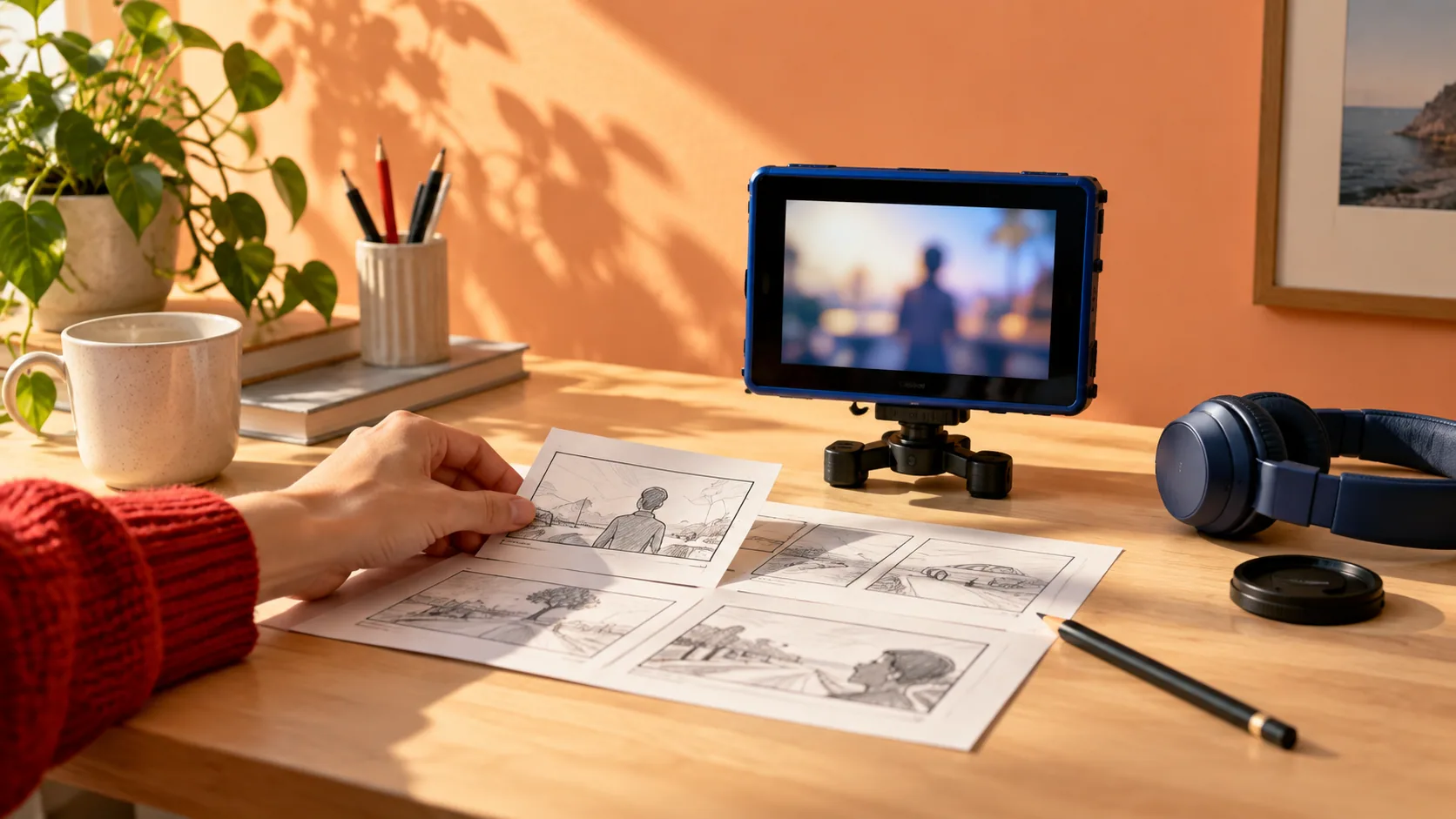

Best AI Tools for Explainer Video in 2026
Compare 8 tools, prepare your script, and build a video that shows what you mean.
Explore the guide
Turn a brief into scenes you can check.
Audience: New customers need to understand how to request a shared workspace.
Opening
Need a workspace for your next session?
Source facts: Choose a room, enter a date, and submit a request. A coordinator must confirm it.
Explanation
Choose a room and date, then send your request.
Boundary: Do not imply the request is an instant booking.
Condition
Wait for the coordinator’s confirmation before making plans.
Next action: Direct viewers to the approved request page; its destination is still needed.
Next action
Open the workspace request page.
Authored illustration of a brief and scene outline. No product run or generated video is represented.
The confirmation condition stays in the narration and the visuals. A polished animation should not turn a request into a confirmed booking.
Choose how the explanation should look.
Let a presenter guide the viewer

Synthesia
Choose Synthesia when a presenter can guide viewers through a document-backed explanation. Keep the source material beside the draft while reviewing each scene.

HeyGen
Choose HeyGen when the presenter’s delivery needs close attention. Scene scripts and pronunciation controls give you a concrete place to fix names and pacing.
Show a process with animated scenes

Vyond
Choose Vyond when characters need to show an interaction or process. Generate the draft, then use Studio to correct the actions that carry the explanation.

Powtoon
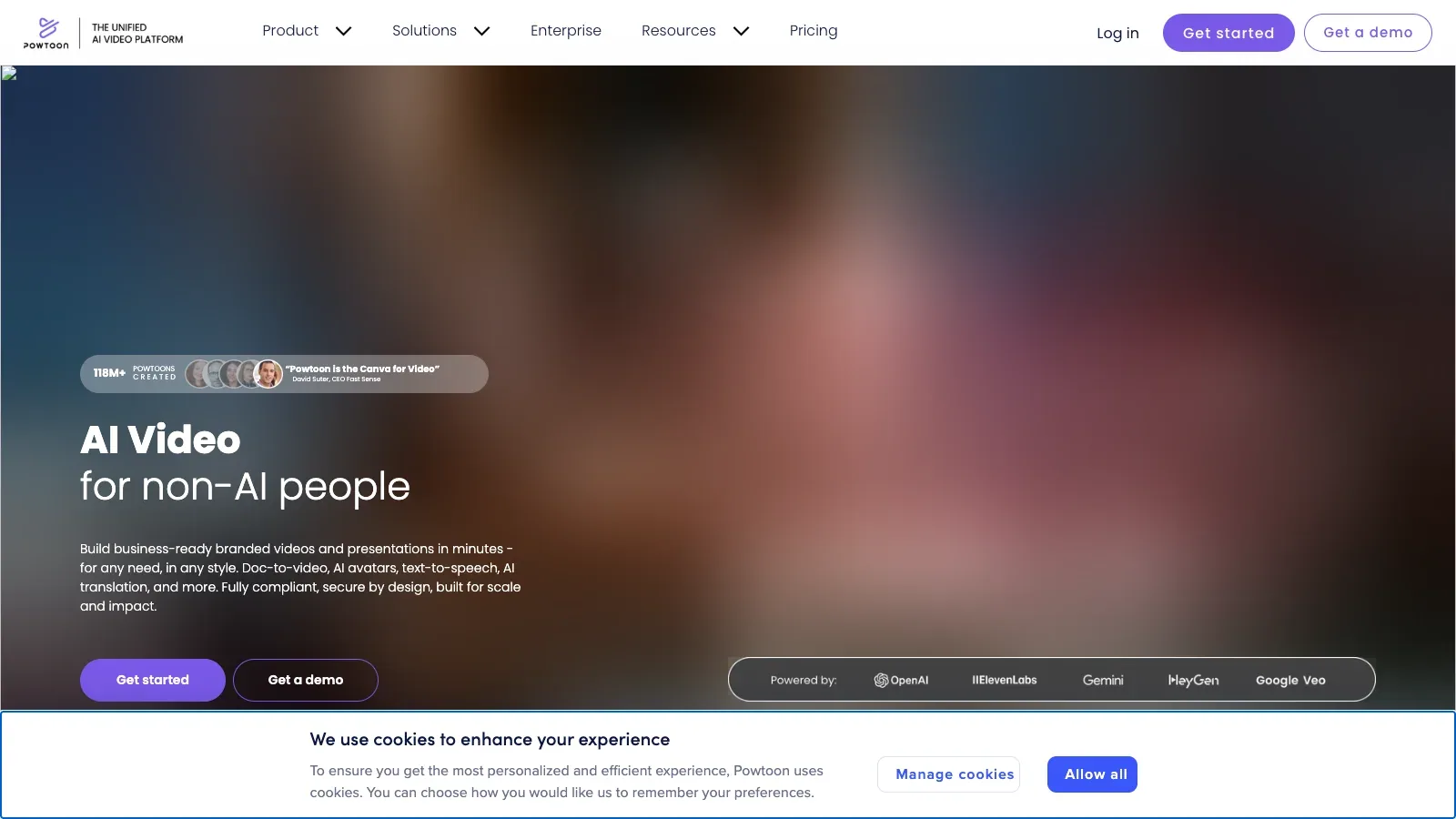
Choose Powtoon when an existing template gets you close and you want to mix animation, screen recordings, and stock footage.

Animaker
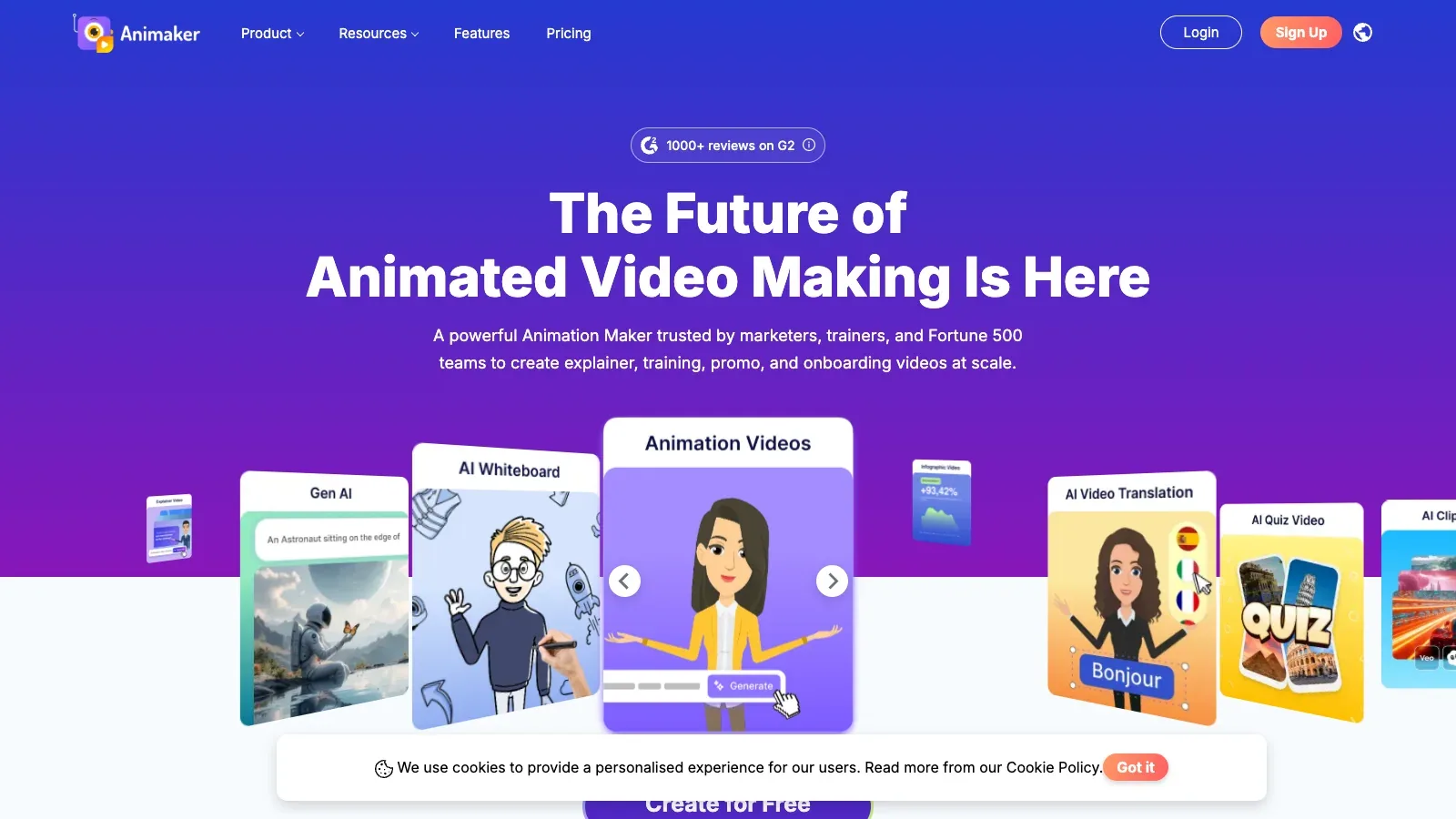
Choose Animaker when the explanation depends on animated characters and you expect to adjust their appearance and scene elements.

Renderforest
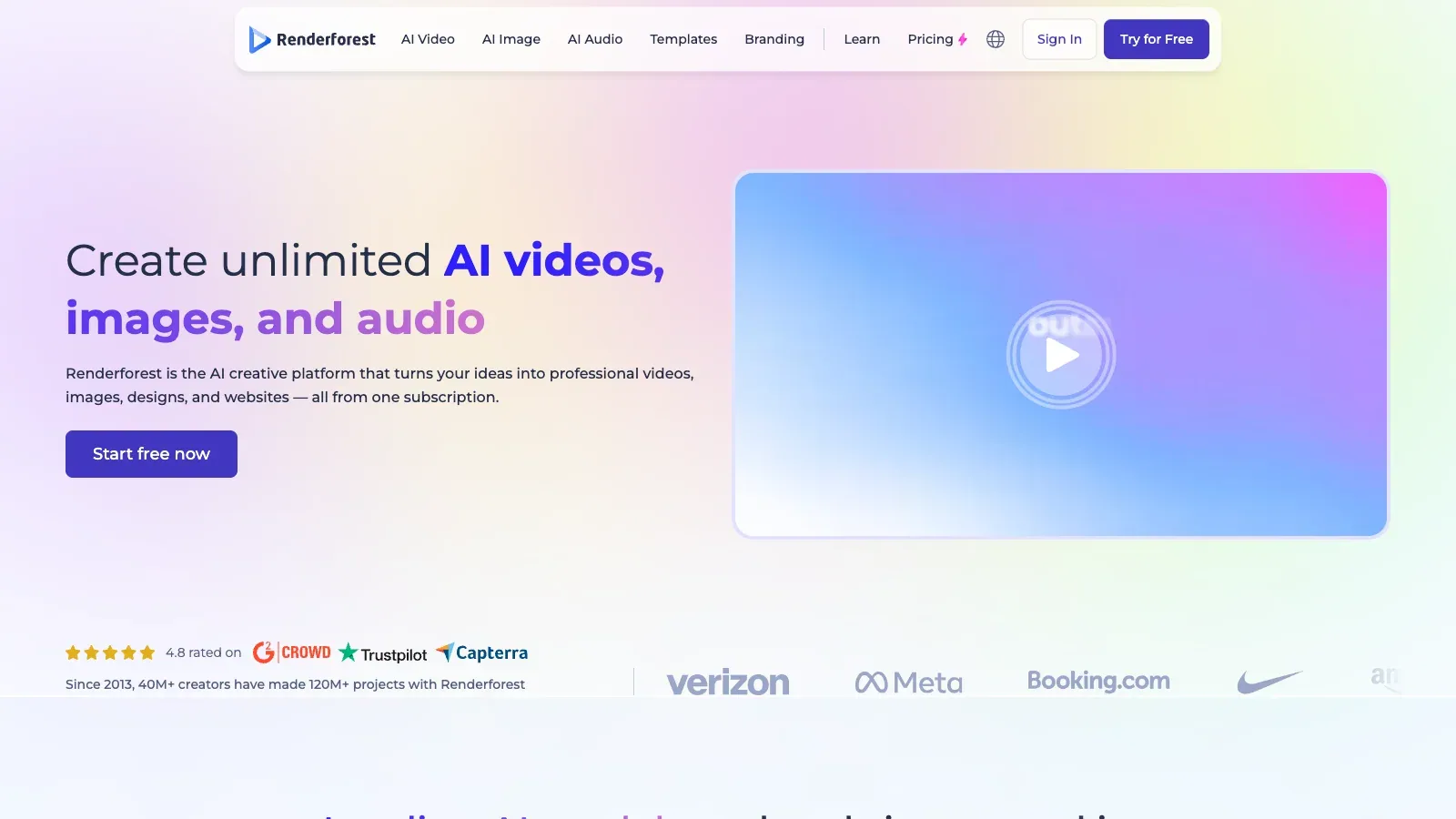
Choose Renderforest when a preset already matches the story. Map the script to available scenes before committing to that visual style.
Build around narration and footage
Compare the work you will need to do.
8 tools · official pages checked September 15, 2026. Prices use the stated billing basis; invideo names follow the directly retrieved pricing page.
| Tool | Workflow fit | Starting material | Editing | Delivery | Access and cost | Practical limit |
|---|---|---|---|---|---|---|
| Synthesia | Document-led presenter videos | Prompt plus supporting documents or URLs | Refine script and visuals in the editor | Paid download access; Basic is restricted | Free Basic; paid download plans | Assistant and video downloads need paid access. Do not build a download workflow around Basic. |
| HeyGen | Scene-by-scene avatar scripts | Typed or imported scene scripts | Edit scripts and preview pronunciation | 1080p on Creator; 4K on Pro | Free and paid plans with generation limits | Free videos stop at one minute. Check paid generation allowances before planning multiple language versions. |
| Vyond | Character dialogue and process animation | Prompt, script, document, or URL | Quick Edit, then Vyond Studio | Check delivery format and plan before export | Annual plans; some tiers offer monthly billing | Script generation ignores extra characters beyond two and additional visual instructions. Plan to stage those details manually. |
| Powtoon | Template scenes with mixed media | Goal, audience, topic, and duration | Replace backgrounds and elements in Studio | Paid 1080p MP4; Lite has an export allowance | Free and paid plans; separate AI credits | Premium exports and AI credits are separate. A plan with unlimited exports can still limit generation. |
| Animaker | Editable character animation | Prompt plus audience and context answers | Advanced Edit for characters and scene elements | Resolution and format vary by plan | Free and paid plans with several usage counters | Generation, asset creation, and downloads draw on different allowances; a long edit cycle can exhaust one before the others. |
| Renderforest | Preset-based explainers | Voiceover script or preset scenes | Customize template scenes | HD720 / HD1080 / 4K template tiers | Free access; Lite $8/month billed annually or $12 monthly | Check the template-export resolution separately from AI-generation resolution. |
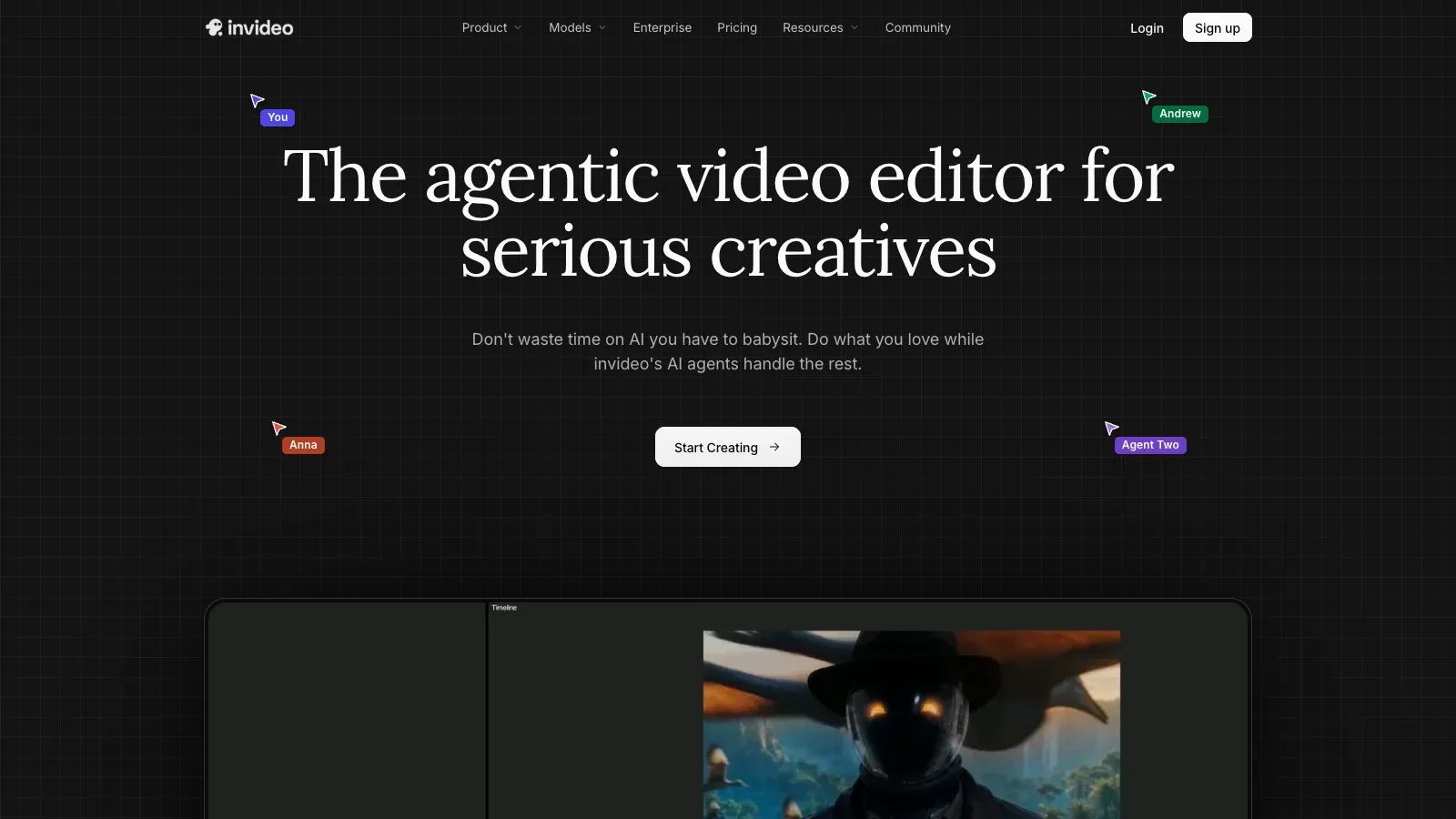
 invideo invideo | Shot planning and timeline editing | Script, idea, or uploaded footage | Manual or agent-assisted multitrack editing | Verify current plan and final output settings | Starter $20/seat/month; direct pricing-page offer | Unused subscription credits expire each month. Confirm the displayed plan name and allowance, since official page responses differ. |
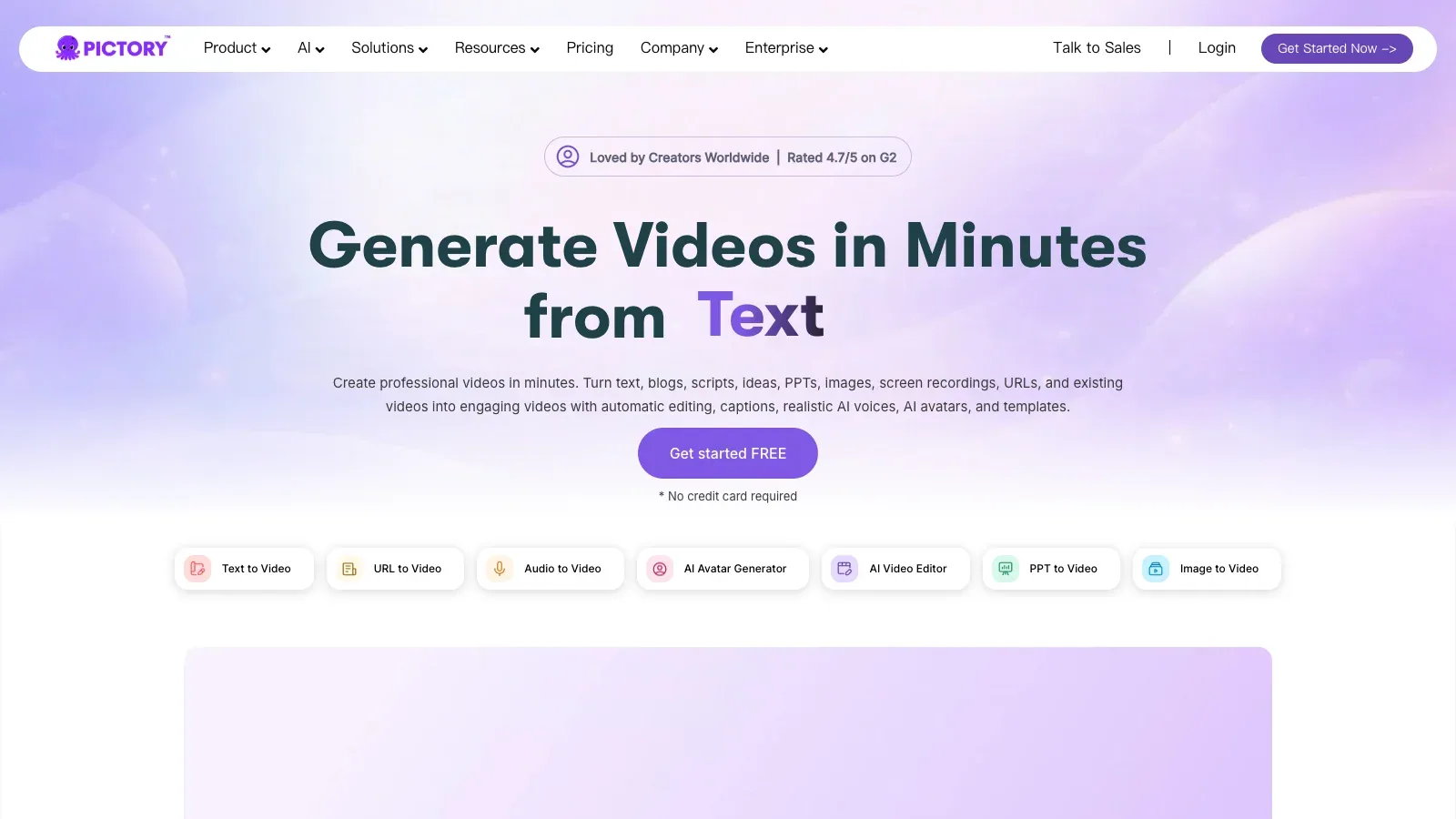
 Pictory Pictory | Script-led narrated scenes | Script or PDF through separate entry points | Edit text, visuals, audio, and scene timing | Generate a file to download or share | Paid plans; a time-limited trial is available | Doc to Video accepts only PDFs under 50 MB. Paste a script through the text workflow when your source is a different document format. |
Where each tool fits.
Synthesia
- Free
- $29/month
- $89/month
- Custom pricing
- Choose it when
- An onboarding or product explanation with approved source documents.
- Think twice when
- Assistant and video downloads need paid access. Do not build a download workflow around Basic.
- Before you start
- Confirm download access, then review the source facts and script before spending credits on the full video.
HeyGen
- Free
- $29/month
- $49/month
- $149/month
- Custom pricing
- Choose it when
- A presenter-led explanation where spoken terminology must stay consistent.
- Think twice when
- Free videos stop at one minute. Check paid generation allowances before planning multiple language versions.
- Before you start
- Preview the hardest product name and a full scene of narration before rendering.
Vyond
- $699/year per user
- $1,199/year per user
- $1,649/year per user
- $1,999/year per user
- Choose it when
- A short process or two-person conversation that benefits from animation.
- Think twice when
- Script generation ignores extra characters beyond two and additional visual instructions. Plan to stage those details manually.
- Before you start
- Check whether the story fits one speaker or two; open the draft in Studio to inspect visual actions.
Powtoon
- Free
- $15/month
- $70/month
- $125/month
- Custom pricing
- Choose it when
- A mixed-media explainer assembled from an editable template.
- Think twice when
- Premium exports and AI credits are separate. A plan with unlimited exports can still limit generation.
- Before you start
- Check the chosen template and export entitlement, then budget generation credits separately.
Animaker
- Free
- $180/year
- $300/year
- $516/year
- Custom pricing
- Choose it when
- A character-led story with recurring visual elements.
- Think twice when
- Generation, asset creation, and downloads draw on different allowances; a long edit cycle can exhaust one before the others.
- Before you start
- Check the download allowance, required resolution, and whether the planned AI action uses credits or generative seconds.
Renderforest
- Free
- $8/month
- $19/month
- $39/month
- Choose it when
- A short explanation that fits a template’s scene vocabulary.
- Think twice when
- Check the template-export resolution separately from AI-generation resolution.
- Before you start
- Preview whether the preset has the actions you need, and confirm the current price and output resolution.
invideo
- $20/month per seat
- $50/month per seat
- $100/month per seat
- $65/month per seat
- $150/month per seat
- Price unverified
- Choose it when
- A footage-led project that needs shot planning and timing adjustments.
- Think twice when
- Unused subscription credits expire each month. Confirm the displayed plan name and allowance, since official page responses differ.
- Before you start
- Confirm the current offer and credit allowance, then inspect whether your source footage remains editable on the timeline.
Pictory
- $29/month
- $59/month
- $199/month
- Custom pricing
- Choose it when
- An article-style explanation with narration and supporting visuals.
- Think twice when
- Doc to Video accepts only PDFs under 50 MB. Paste a script through the text workflow when your source is a different document format.
- Before you start
- Confirm the PDF is below 50 MB or prepare a pasted script, then review scene splits and voiceover text.
These choices are based on official product documentation. Compare a short scene with your own script before committing to a full production workflow.
From a reviewed script to an explainer video.
Write one audience question
State what the viewer should understand or be able to do after watching. For a short first draft, aim for 60–90 seconds and one next action. Treat that duration as a working constraint, then adjust it after reading the script aloud.
Prepare a script and a scene list
Use the brief below to pair each spoken point with a visual. Mark product claims that need a source. Use real screenshots or recordings when exact interface behavior matters; illustrative footage cannot demonstrate how a button works.
Choose a visual approach and generate a draft
Use Pictory for a script-led starting point: enter the reviewed script in its text workflow, set the format, and generate the storyboard. Choose a presenter or animation tool from the comparison when the explanation needs a person or a visible interaction. These are separate workflows; switching tools requires a manual transfer of the script and permitted assets.
Replace visuals that miss the point
Inspect every scene against its narration. Replace generic footage with the relevant image or recording, cut decorative shots, and keep enough time to read labels. In Pictory, revise scene text, visuals, voiceover, and duration in the storyboard before generating the final file.
Review the voice and the exported file
Listen for names, numbers, pauses, and music that covers the narration. Check captions where you use them. After export, watch the actual file at the intended size and verify the ending, aspect ratio, resolution, and any watermark.
Prepare a brief and scene script.
Use this as a production brief. Paste only the narration into a field that expects a verbatim script, and enter visual instructions separately.
AUDIENCE AND QUESTION
Viewer: [who is watching]
Question to answer: [one question]
Next action: [what they should do]
Target duration and ratio: [working limit; 16:9, 9:16, or another format]

VERIFIED MATERIAL
Facts to include: [claim and supporting source]
Assets available: [permitted screenshots, recordings, images, logo]
Terms to pronounce: [name and pronunciation]

SCENES
1. Problem: [spoken line] | [what the viewer sees]
2. Explanation: [spoken line] | [visual that demonstrates it]
3. Example: [spoken line] | [concrete example]
4. Next action: [spoken line] | [final frame]

EDITING INSTRUCTIONS
Keep the supplied facts and names exact. Flag missing information.
Give each scene one idea. Keep narration separate from on-screen text.
Use supplied product images where visual accuracy matters.
Leave time to read labels and complete the final sentence.
Before you use the video
Questions before you start.
Should I use an avatar, animation, or stock footage?
Use an avatar when a person should guide the viewer through the material. Use animation to show a relationship or interaction. Use footage when the images themselves explain the subject. For exact product steps, prepare real screenshots or recordings.
Can I make the whole video for free?
Check the final export entitlement before building it. A free editor or trial may restrict downloads, duration, resolution, or watermark removal. The comparison table identifies the limits verified for this guide.
How long should the first draft be?
For this workflow, start with a 60–90 second limit and one audience question. Read the script aloud, include pauses, and cut material that does not answer that question. A longer process may need several separate videos.
Will the AI preserve every fact in my document?
Review the script against the source before generating the final video. Keep conditions, numbers, and names explicit. The sample above preserves the difference between submitting a request and receiving confirmation.
Can I use generated footage as a product demonstration?
Use real product captures when viewers need to see exact controls or behavior. Generated footage can illustrate a concept, but it should not imply a product action or outcome that the source material does not establish.
Have these workflows been tested hands-on?
This guide uses official product pages and documentation. The scene outline is an authored example. No hands-on results, production-time measurements, or output-quality rankings are claimed.
Sources
Official product pages used to support the comparison above.
- Synthesia · Starting material, Editing
- Synthesia · Delivery, Access and cost, Practical limit
- HeyGen · Starting material, Editing
- HeyGen · Delivery, Access and cost, Practical limit
- Vyond · Starting material, Editing, Practical limit
- Vyond · Access and cost
- Powtoon · Starting material, Editing
- Powtoon · Delivery, Access and cost, Practical limit
- Animaker · Starting material, Editing
- Animaker · Delivery, Access and cost, Practical limit
- Renderforest · Starting material, Editing
- Renderforest · Delivery, Practical limit
- Renderforest · Access and cost
- invideo · Starting material, Editing
- invideo · Access and cost, Practical limit
- Pictory · Starting material, Editing, Delivery, Practical limit
- Pictory · Access and cost