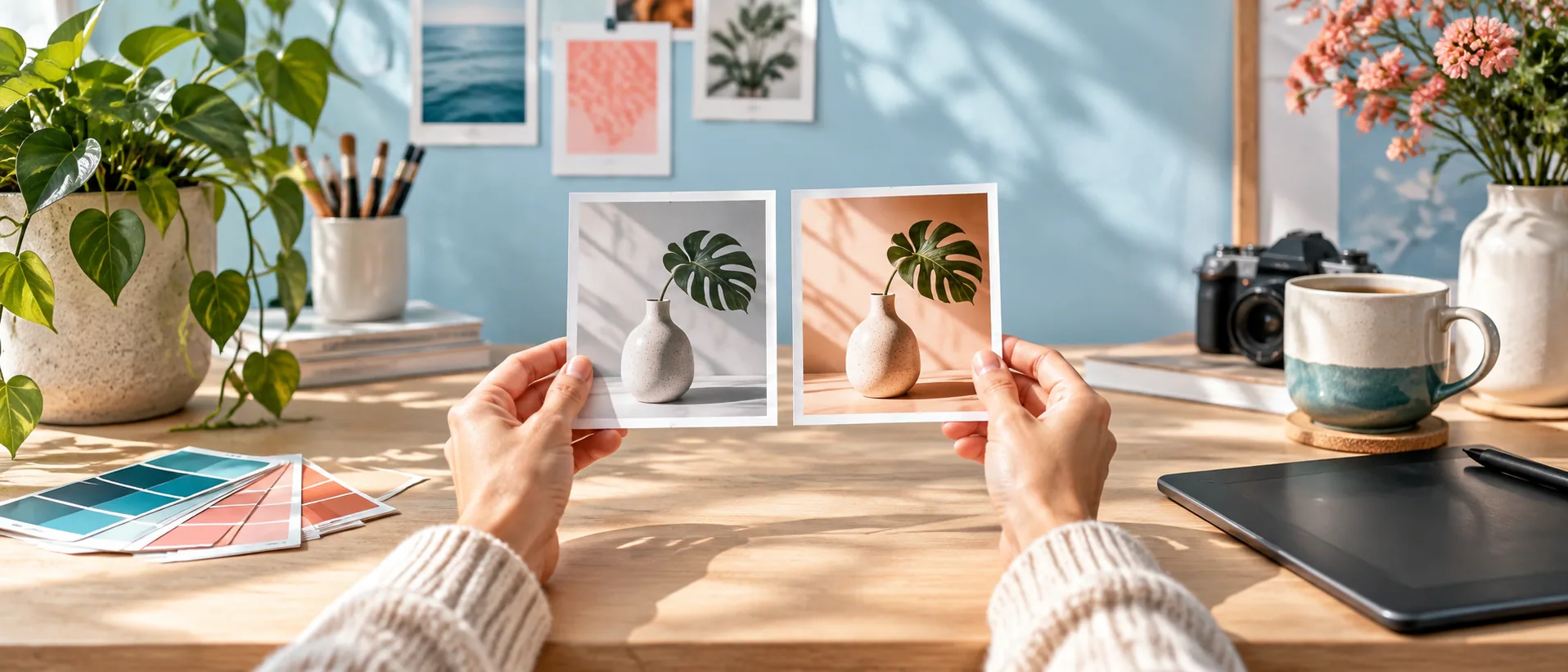

Best AI Tools for Text to Image in 2026
Choose the workflow around your final asset, then refine one visual decision at a time.
Explore the guide
Give the model a composition to work toward.
Starting request: An image for an article about urban gardening.
Subject
A person watering herbs on a compact city balcony.
Placement: A wide article header with a title on the left.
Composition
Place the person and plants on the right.
Direction: Warm morning light, a small balcony, practical everyday materials.
Review
Inspect hands, watering can, and plant containers.
Authored illustration. No product run, measured performance, or firsthand result is represented.
This is an authored prompt-development example, not an image generated or tested with any listed tool.
Choose by the asset you need to finish.
Explore and revise an image
Edit and place the result
Work with text or vectors
Compare the work each option covers.
8 tools · official pages checked September 15, 2026. Unverified prices and plan boundaries are marked in each Tool profile.
| Tool | Use it for | Starting material | Review and editing | Working result | Access | Check first |
|---|---|---|---|---|---|---|
 Midjourney Midjourney | Visual exploration | Text and references | Prompt iterations | Generated image | Paid subscription | Public visibility |
 Adobe Firefly Adobe Firefly | Generation and edits | Text, references, sketches | Remove, expand, replace | Edited visual | Free limits; paid credits | Selected model |
 Ideogram Ideogram | Text-heavy concepts | Text prompt and images | Canvas and text layers | Refined image | Free; paid plans | Lettering accuracy |
 Leonardo.Ai Leonardo.Ai | Reference direction | Prompt and reference images | Guidance and refinement | Image assets | Free daily; paid tokens | Privacy and model scope |
 Recraft Recraft | Vector or raster | Visual brief | Editor and cleanup tools | Raster or vector | Free restrictions; paid rates unverified | Rights and format |
 Magnific Magnific | Repeatable production | Prompt and image assets | Editing and Spaces workflows | Refined image | Annual credit plans | Model-specific limits |
 Canva Canva | Finished layout | Subject, mood, and style | Add text and layers | PNG, JPG, PDF | Plan-dependent access | Final export |
 Gemini Gemini | Conversational revisions | Text and uploaded images | Describe targeted changes | Image download | Account and plan limits | Eligibility and resolution |
Where each tool fits.
Midjourney
- $10/month
- $30/month
- $60/month
- $120/month
- Choose it when
- Creators comfortable with a subscription and iterative prompting.
- Think twice when
- Stealth mode is limited to Pro and Mega.
- Before you start
- Check visibility settings before uploading confidential material.
Adobe Firefly
- Free
- $9.99/month
- $19.99/month
- $49.99/month
- $199.99/month
- Choose it when
- Designers using Adobe image tools.
- Think twice when
- Model and credit allowances differ by plan.
- Before you start
- Check the selected model and action against your credit allowance.
Ideogram
- Free
- $15/month
- $42/month
- $20/month
- Custom pricing
- Choose it when
- Creators working with text inside image concepts.
- Think twice when
- Layerize is beta and may struggle with decorative or curved text.
- Before you start
- Test the actual lettering before relying on an editable result.
Leonardo.Ai
- Free
- $12/month
- $30/month
- $60/month
- $72/month
- $144/month
- Custom pricing
- Choose it when
- Creators who want generation and refinement in one workspace.
- Think twice when
- Free generations are public; relaxed access covers selected models.
- Before you start
- Confirm privacy and the chosen model before starting.
Recraft
- Free
- Price unverified
- Choose it when
- Designers creating illustrations and scalable graphics.
- Think twice when
- Free outputs are public and not licensed for commercial use.
- Before you start
- Choose the appropriate plan before generating a commercial asset.
Magnific
- $14.5/month
- $33.75/month
- $82.5/month
- Choose it when
- Teams repeating image workflows.
- Think twice when
- Unlimited offers cover named models and settings.
- Before you start
- Check the model and output settings against the current allowance.
Canva
- Free
- $144/year
- $250/year per person
- Custom pricing
- Choose it when
- Creators combining images with headings and layout.
- Think twice when
- Generated text and exact brand details still need inspection.
- Before you start
- Keep the final headline editable in the design.
Gemini
- Free
- $4.99/month
- $19.99/month
- $99.99/month
- Choose it when
- Creators making and revising an image through chat.
- Think twice when
- Editing, model access, and resolution have account restrictions.
- Before you start
- Check account eligibility and required download size.
These choices compare documented workflows. They do not represent measured image quality or a hands-on model benchmark.
Move from a clear brief to a checked export.
Define one image job
Write the subject, setting, framing, lighting, palette, and intended placement. Specify the aspect ratio and any space needed for a headline.
Generate a first direction
In Gemini, describe the image in a new conversation. Include only references you are authorized to upload. Use the result to assess composition before polishing details.
Revise one decision at a time
Ask for a concrete change such as moving the subject, simplifying the background, or changing the lighting. Preserve the elements that already work.
Finish exact content separately
Inspect details and add critical copy or brand marks in an editor. For a layout-first route, place the chosen image in Canva and keep text editable. This handoff is manual.
Check the delivery file
Download the image and inspect its dimensions, crop, detail quality, and intended-use conditions. Test it in the actual layout rather than judging only the generation preview.
Write a brief with a clear destination.
Use the first result to test the composition. Keep revisions specific enough to compare with the previous version.
PURPOSE
Image placement: [header, illustration, social design]
Aspect ratio and required dimensions: [details]

VISUAL
Subject and action: [description]
Setting: [description]
Composition: [placement and empty space]
Lighting and palette: [description]
Style: [description]

CONSTRAINTS
Keep: [important elements]
Avoid: [specific unwanted details]
Exact text or brand assets: [add separately in editor]

REVISION
Change only [one visual decision]. Preserve [successful elements].
Before the export
Questions before you start.
Which tool makes the best images?
The useful choice depends on the work: visual exploration, editable text, vectors, conversational revisions, or a finished layout. Compare those needs before judging style alone.
Can I use the image commercially?
Check the current terms and your plan before generating assets for commercial work. Recraft explicitly restricts free-plan commercial use; other tools have their own conditions.
Why add text separately?
Exact copy is easier to proofread, revise, and reuse as an editable layer. Generated lettering can look convincing while containing small errors.
What should I change when the result misses the brief?
Identify the largest mismatch first: subject, framing, style, or lighting. Ask for one concrete correction, then inspect whether the change preserved the parts that worked.